Monday, September 25, 2023

Workaround for passing TABLE reference to Excel LAMBDA function


You can use the new LAMBDA function in Excel (Desktop edition) to create custom, reusable functions and call them by a friendly name. The custom function is available throughout the workbook and can be called like native Excel functions.


The Excel Labs (formerly Advanced Formula Environment) add-in’s Import from Grid feature can be used to create the LAMBDA function from an example you create.


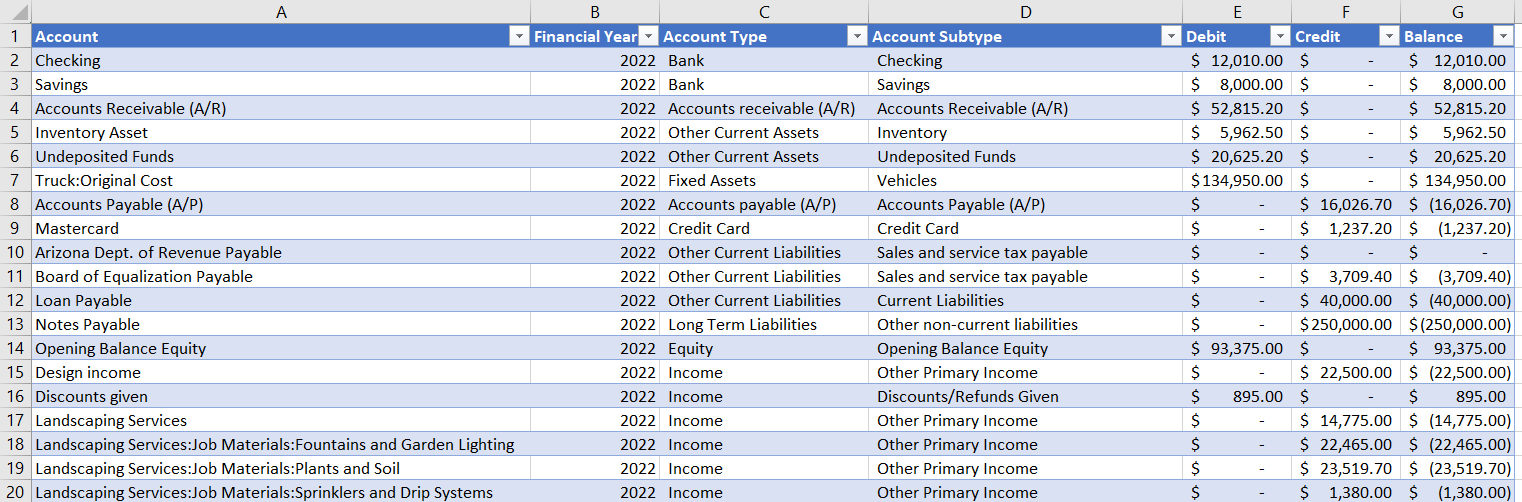
For the purpose of this article, I wanted to create a LAMBDA function to calculate the financial ratio (Receivables Turnover ratio for this example) from the Trial Balance table exported from Quickbooks Online. However, any Trial Balance table can be used as long as it follows the format used for this table. The following screenshot shows the part of the table used in this example.


The function takes the Financial Year as a parameter and calculates the Receivable Turnover ratio as follows:

Receivable Turnover = Revenue / Average of Beginning and Ending Accounts Receivable


I started by building my example (B2:E2) using the SUMIFS function as shown in the screenshot below.


I then used the Excel Labs add-in’s Import from Grid feature to build the LAMBDA function.


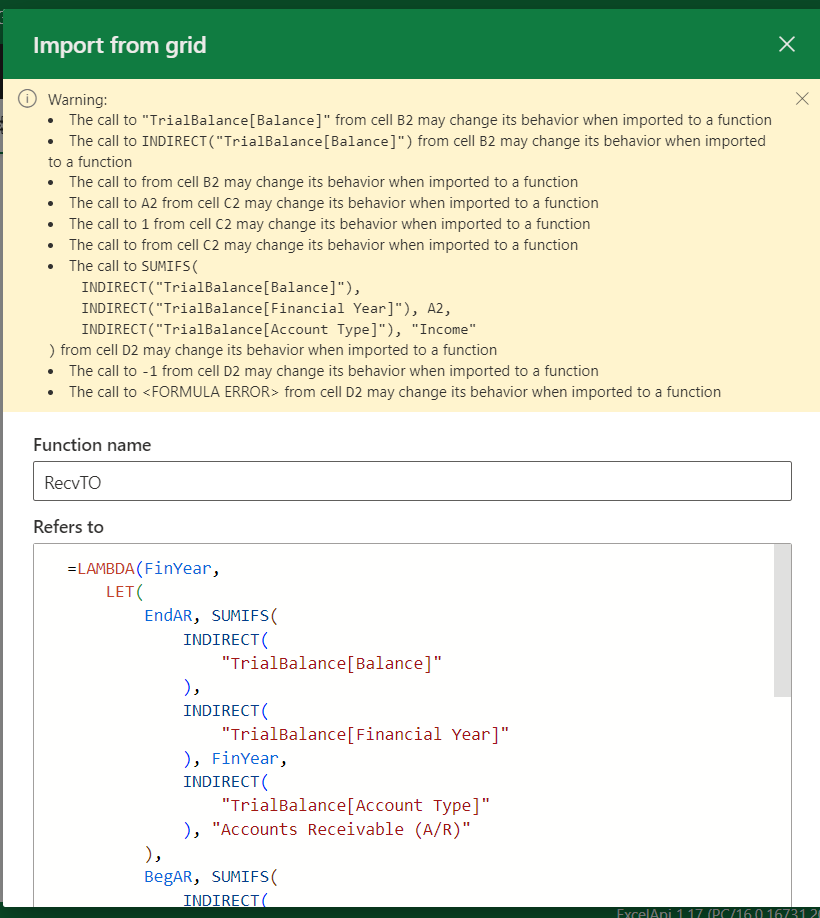
However, the add-in produced the following error because the Table reference cannot be used in the LAMBDA function.


A workaround for this limitation is to use the INDIRECT function to reference the required tables and columns in the LAMBDA formula. I changed the formulas as shown in the screenshot below.
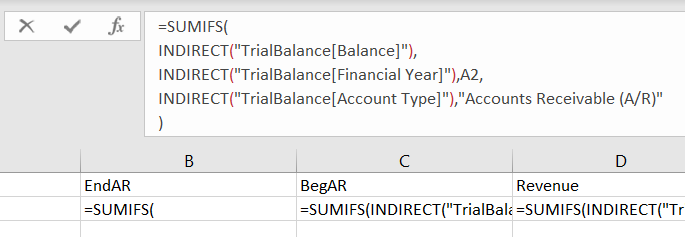


=SUMIFS(

INDIRECT("TrialBalance[Balance]"),

INDIRECT("TrialBalance[Financial Year]"),A2,

INDIRECT("TrialBalance[Account Type]"),"Accounts Receivable (A/R)"

)


Clicking the Preview button generated the following code with a warning:


The warning is related to the INDIRECT function. The INDIRECT function is volatile because the range of the table is unknown and can change. As such it may cause the entire workbook to be recalculated frequently. Volatile functions can impact performance, especially for large workbooks. You can set the "Manual" calculation option to avoid automatic recalculation.


Here is the complete LAMBDA function generated by the add-in:


RecvTO = LAMBDA(FinYear,

    LET(

        EndAR, SUMIFS(

            INDIRECT(

                "TrialBalance[Balance]"

            ),

            INDIRECT(

                "TrialBalance[Financial Year]"

            ), FinYear,

            INDIRECT(

                "TrialBalance[Account Type]"

            ), "Accounts Receivable (A/R)"

        ),

        BegAR, SUMIFS(

            INDIRECT(

                "TrialBalance[Balance]"

            ),

            INDIRECT(

                "TrialBalance[Financial Year]"

            ), FinYear - 1,

            INDIRECT(

                "TrialBalance[Account Type]"

            ), "Accounts Receivable (A/R)"

        ),

        Revenue, SUMIFS(

            INDIRECT(

                "TrialBalance[Balance]"

            ),

            INDIRECT(

                "TrialBalance[Financial Year]"

            ), FinYear,

            INDIRECT(

                "TrialBalance[Account Type]"

            ), "Income"

        ) * -1,

        Revenue /

            ((EndAR + BegAR) / 2)

    )

);


You can verify your custom function by entering it in any cell. See the F2 cell below containing the custom function: =RecvTO(A2).


You can download the above Excel workbook here. Note that you will need to install the Excel Labs add-in to use the Import from Grid feature.

Saturday, March 3, 2018

Use Action to retrieve or update data in an unrelated entity in Dynamics 365 Workflows

There are scenarios where you need to access data from an entity that is not directly related to the entity for which you are building a Workflow in Dynamics 365.

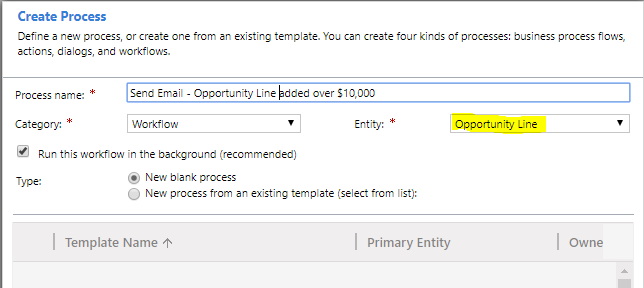
For example, you want to send an email alert to the Owner of the Account on the Opportunity when an Opportunity Line is created or updated with the amount exceeding $10,000. In this case, the Workflow will be created for the Opportunity Line entity which triggers the Workflow. However, within the Workflow Designer, you can access data only from the entities that are reated to Opportunity Line entity such as Opportunity or Product. However, Account is not directly related to the Opportunity Line entity and therefore you cannot access the Owner field of the Account within the Workflow. To get around this limitation, you can create another Process of type Action. The Action will be for the Account entity and it will return the Entity Reference for the Account being passed to the Action. You can then call (perform) this Action within your Workflow. This will enable you to access any fields from the Account entity within the Workflow. Here are the specific steps to implement this solution.
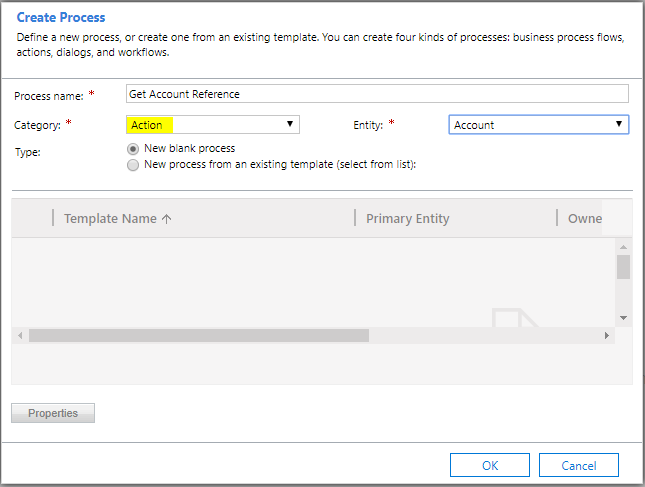
Create a Process of type Action on the Account entity.
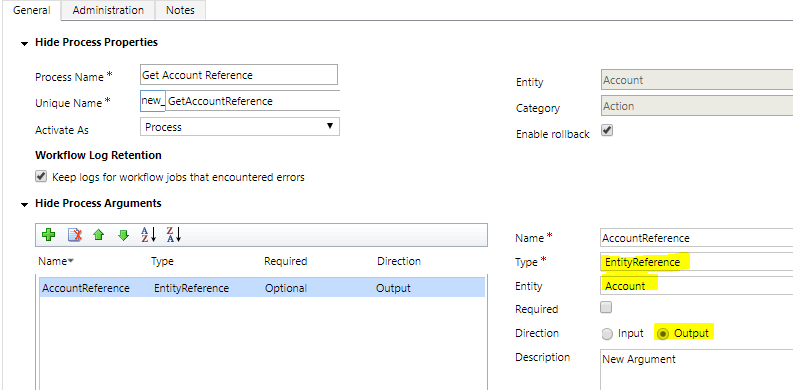
Add an Argument of Type EntityReference returning the Account entity as Output.


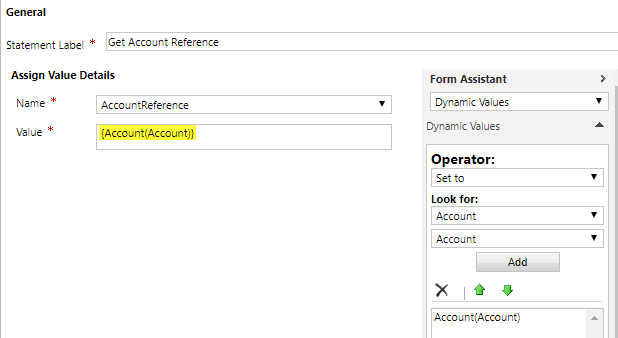
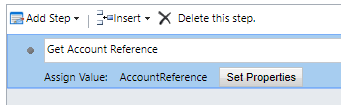
Add the Assign Value step as shown in the screenshot below.


Activate the Action.
Next, create a Workflow for the Opportunity Line entity.
Select "Record is created" and "Record fields change" (Line Amount) triggers.
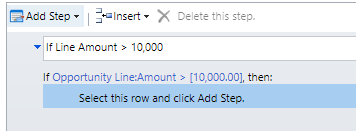
Add condition. In this case it is: if Opportunity Line:Amount > 10,000.
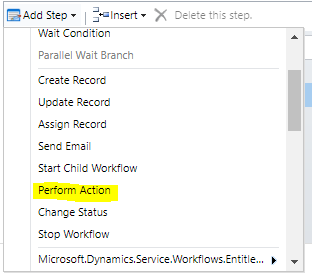
Add the Perform Action step and select the Action created above.


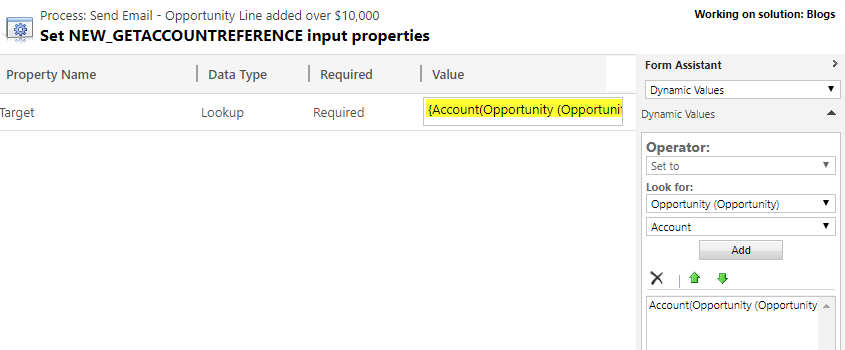
Pass the Account on the Opportunity as the Input parameter.
Add the Send Email step.

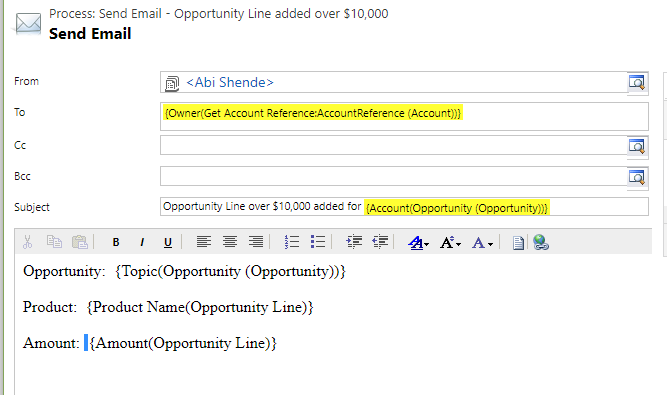
As you can see from the screenshot below, you can now access the Owner field on the Account to populate the “To” (email recipient) in the Send Email step.
Complete the other details for your email.
Activate the Workflow and test your Workflow by adding or updating a line on the Opportunity exceeding $10,000.
You can use this Action in other Workflows or code where you need to retrieve data from a specific Account record.

In addition, you can use this technique to update an unrelated record in your Workflow which was not previously possible.

You can also use this technique to retrieve data from the Business Unit of the record owner
or Field Service Settings which are not directly related to the record on which the Workflow is being executed.

In this post, we saw how you can retrieve or update data in an unrelated entity within the Workflow using Action.

Saturday, September 30, 2017

Find Resources using Map View

One of the common scenarios for schedulers/dispatchers using Dynamics 365 Field Service solution involves finding a technician to attend to an urgent or emergency service call. Resources who are in the area close to the service location are preferred due to urgency of the call. If the resources who are in the area are busy i.e. booked for routine Work Orders, they do not show up as “available” when using Schedule Assistant. How do you find the resources close to the service location who may be booked for lower priority routine work orders?

The Map View feature of the Schedule Board makes this possible. Once you locate the nearby resources, you can reschedule them from lower priority routine Work Orders and assign them to urgent Work Orders.

Here are the steps to accomplish this.

  1. Navigate to Schedule Board

    Field Service > Schedule Board

  1. Click on the Map View tab under Filter and Map View on the left-hand side of the Schedule Board
  1. Select Resources

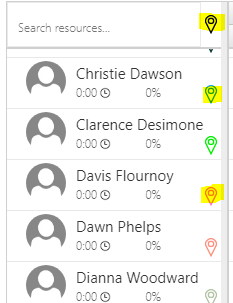
    Select resource you want to see on the Map by clicking on individual pin next to the resource or select all resources by clicking on the icon at the top.

  1. Search for the Requirement (Work Order)
Click on the Search (magnifier glass) icon.

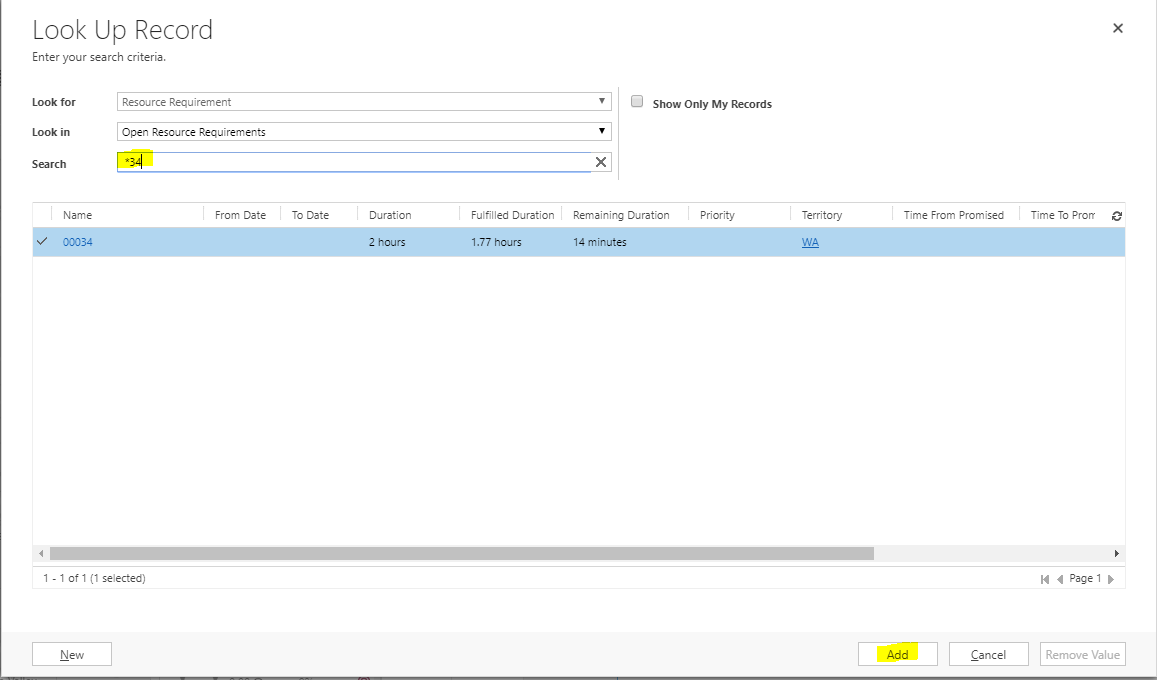
Enter the Work Order Number (resource requirement) for which you want to find available resources, press enter and click on Add.


You can even create a new Resource Requirement from within this form.

  1. Locate resources on the map

    The Requirement you selected is shown as a pin with a “?” and a circle under it. Resources are shown as solid colored pins. You can hover over the pin to see the name of the resource. You can use the + or – buttons to zoom in or out on the map.

Saturday, July 8, 2017

Analyze Costs and Gross Profit for Dynamics 365 Field Service Work Orders


Dynamics 365 Field Service solution automatically calculates the subtotal and total amount to be billed for the Work Order based on Products and Services used. However, it does not calculate the total cost at the Work Order level.
Field Service managers like to analyze costs and profitability by various dimensions such as:
  • Resources (technicians)
  • Equipment
  • Territories
  • Geography
  • Dates, etc.
This requirement can be addressed by creating rollup and calculated fields in the Work Order entity.
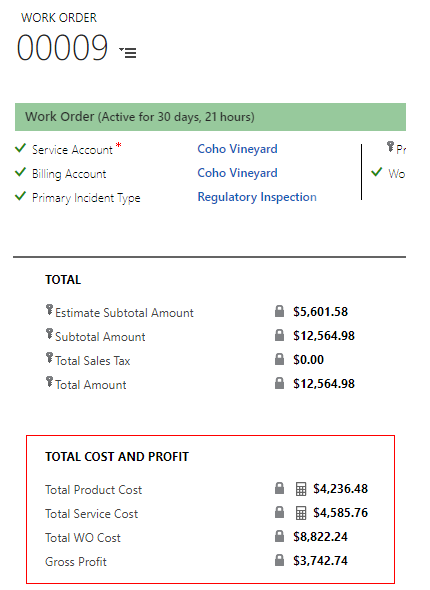
I created the following custom fields in the Work Order entity and added them to the Work Order form.
Field
Data Type
Field Type
Description
Total Product Cost
Currency
Rollup
SUM of Total Cost from related Work Order Product records where Line Status = “Used”
Total Service Cost
Currency
Rollup
SUM of Total Cost from related Work Order Service records where Line Status = “Used”
Total WO Cost
Currency
Calculated
Total Product Cost + Total Service Cost
Gross Profit
Currency
Calculated
Subtotal Amount - Total WO Cost
These fields can be added to views and may be used for reports and dashboards for better insights into Work Order costs and profitability.

Saturday, April 15, 2017

Dynamics 365 Field Service Data Model

In the previous post, I discussed how to build a Power BI data model for Dynamics 365 Field Service.
While writing that post, I searched the web and Microsoft sites for Entity Relationship Diagram (ERD) for Work Order and related entities. However, the search returned no results.
I used the metadata diagram tool to generate the following diagram for the Work Order (msdyn_workorder) and related entities. It can be expanded to include more entities as needed.
You can download the Visio diagram (.vsd) here.

Sunday, December 18, 2016

Build Power BI Data Model for Dynamics 365 Field Service

In the previous posts, I discussed how to build PowerPivot data models for sales and financial analysis for Dynamics GP.
In this post, I will describe how we can build a Power BI data model for Dynamics 365 Field Service.
Note: As of this writing, Microsoft has not made a Power BI Content Pack for Dynamics 365 Field Service available.
Primary goal of the data model is to provide useful insights to field service managers of the company using Dynamics 365 Field Service. It should enable service managers to analyze historical data and identify potential opportunities for improvement in service operations.
Here’s the list of some of the key metrics that service managers can use.
  1. Estimated versus Actual Time: Are technicians able to complete work within the estimated time? If technicians are taking longer than the original estimate, it may point to lack of training, skills, parts, tools or access to right information/resources or it may be because of incorrect estimates.
  2. Estimated Amount versus Actual Amount: This will help service managers review pricing and estimating process.
  3. Technician Utilization: What percentage of technicians’ available time was productive i.e., spent on work orders? You can also build Technician Leaderboard using this metric.
  4. Billable Time: What percentage of time used was billable?
  5. Billable Amount, Cost and Gross Profit: This can be analyzed by any desirable dimensions such as Technician, Work Order Type, Equipment/Asset Type, etc.
  6. Travel Time and Travel Distance: Is technicians’ travel optimized based on their skills and location?
  7. Ratio of time spent on preventive maintenance work orders to time spent on work orders from customer requests: It is more efficient and cost effective to service equipment proactively than to fix them when they break down.
This is a good list as a starting point for our data model. We can enhance it in the future to include additional metrics. Here are a few examples:
  1. First time fix rates: Are technicians able to fix the problem on the same day/same visit?
  2. SLA Compliance Rates
  3. Warranty to Maintenance Contract Conversion Rates
  4. Maintenance Contract Renewal Rates
  5. Customer satisfaction ratings: We can include voice of the customer data in the model to measure this.
Below is the diagram of the star schema of the data model. Entities (tables) have been denormalized to create one fact table (Work Order Details) and various dimension tables related to it. This follows Ralph Kimball’s dimensional modeling guidelines. Fact table provides measurements (how much or how many) and dimension tables can be used to answer “who, what, where, when, why, and how” part of the query or question. Dimensional model using star schema is ideal for both performance and usability for Power BI queries and reports compared to relational model used for storing data for the business application such as Dynamics Field Service.


The data model includes the following tables.

Table
Source Entity or Entities
Comments
Work Order Details
Work Order
Work Order Product
Work Order Service
This is the fact table used for reporting estimated and actual cost, revenue, quantities and duration. Line Type indicates whether the record is for Product or Service. Services include Mileage (with UOM of Miles or Hours).
Service Account
Account
Billing and service customer information
Resource
Resource
Represents various resources including Technicians, Vehicles, Facilities, Tools, etc.
Customer Asset
Customer Asset
Information about Customer Asset and Equipment being serviced
Work Order Type
Work Order Type
Represents the types of work order company offers (ex. Maintenance, Service, Installation, etc.)
Product Service
Product
Master table storing products and services
Price List
Price List
Price List used to bill the Work Order
Territory
Territory
Sales and Service Territory
Incident Type
Incident Type
Defines various types of incidents (issues) that a customer could report, on which work orders are based.
Calendar
N/A
Calendar table for time intelligence with relationship to Work Order Details (fact table).

In the future post, I will discuss how this data model can be used to create Power BI reports useful to service managers.